CarPlay transforms your car’s dashboard into a safe, streamlined extension of your iPhone. But when it fails to connect, drops out, or won’t launch, the frustration is immediate. Before you blame your phone or vehicle, work through this systematic guide—most issues stem from a handful of common culprits that don’t require a mechanic or Apple Genius bar.
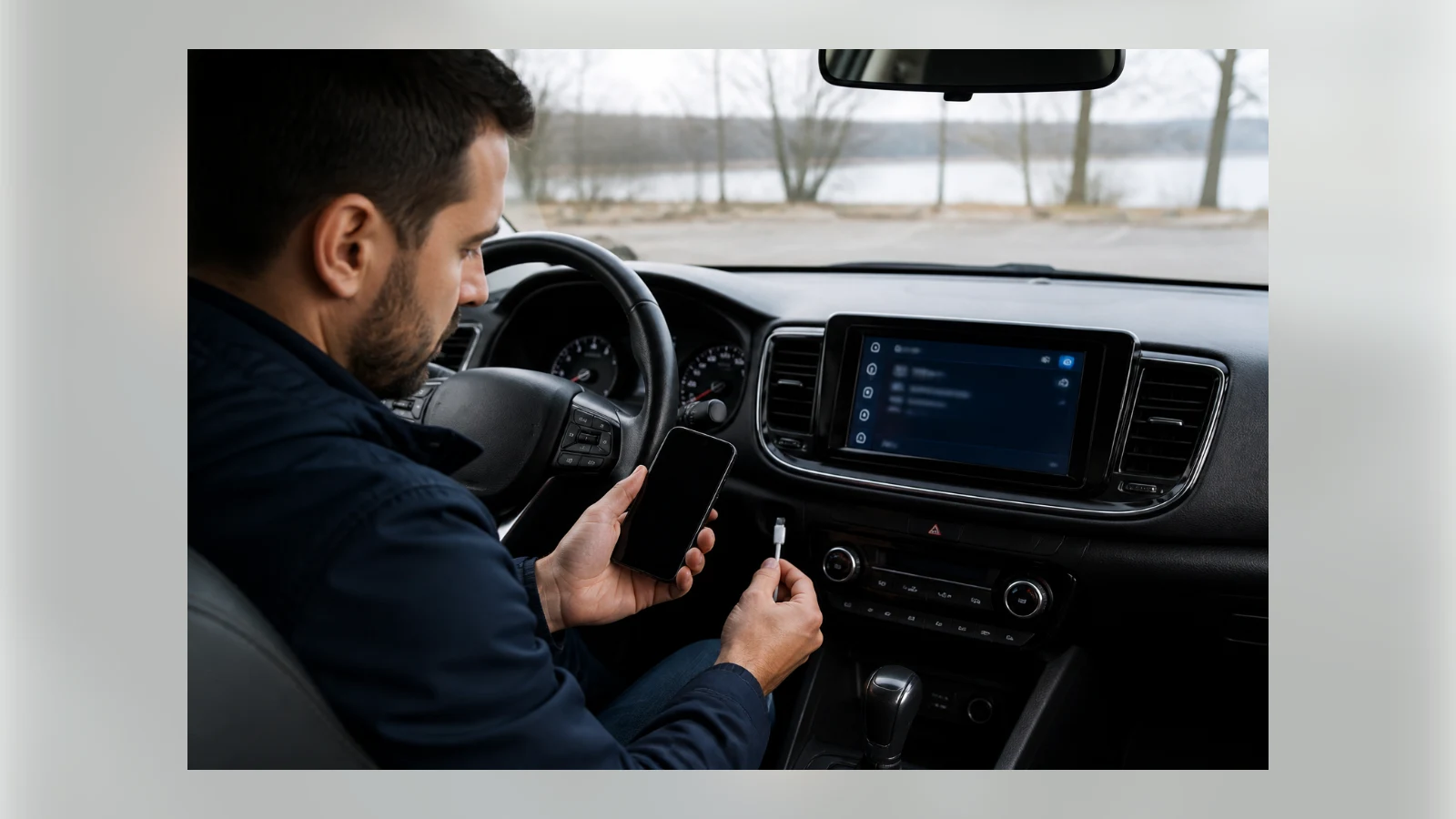
Start with the basics. Restart your iPhone and fully turn your car off and on again. Temporary software glitches often break the handshake between the two devices. In many vehicles, CarPlay won’t pop up automatically; check your infotainment system’s home screen for the CarPlay icon and tap it manually.
Compatibility and prerequisites. If this is your first attempt, verify your car appears on Apple’s official list of supported models. All iPhones from the iPhone 5 onward work with CarPlay, but Siri must be enabled. Go to Settings > Apple Intelligence & Siri (or Siri on older devices) and ensure “Talk to Siri” isn’t set to Off. Also enable “Press Side Button for Siri.” Keeping iOS up to date—while not strictly required—can squash bugs that interfere with connectivity.
The lock-screen hurdle. By default, you must unlock your iPhone once per drive for CarPlay to activate. That’s easy to mistake for a dead connection. To skip the unlock step, navigate to Settings > General > CarPlay, tap your car, and toggle on “Allow CarPlay While Locked.” Note: this convenience means anyone with physical access to your phone and car could place calls or send messages through CarPlay without a passcode. It’s fine for your personal vehicle but worth turning off in rental or shared cars.
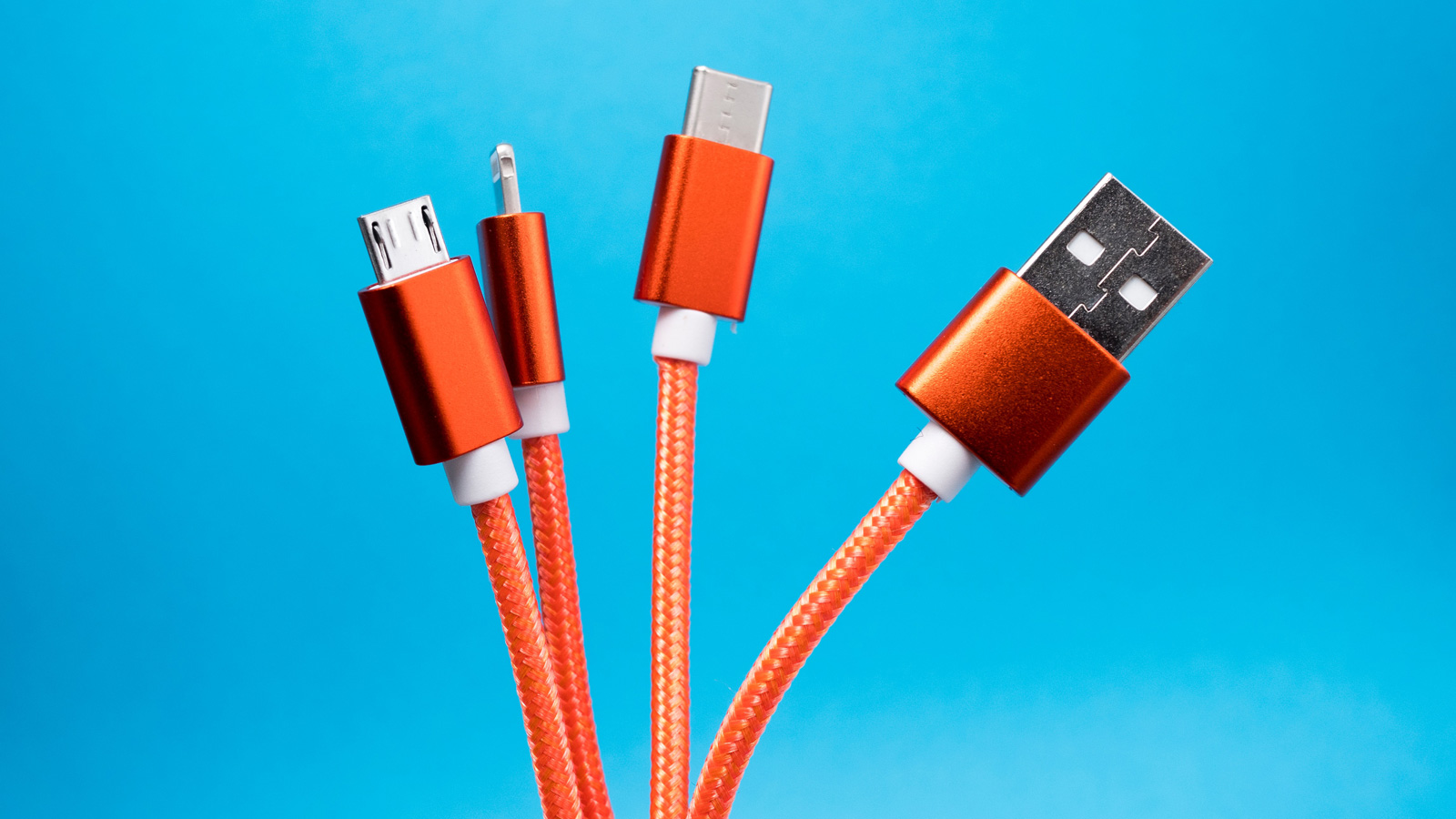
USB cable woes are the most frequent wired culprit. Over time, cables degrade from heat, cold, and bends. If the connection is intermittent or requires holding the cable at a specific angle, replace it. Use a data-transfer-capable cable—charging-only cables won’t work. Avoid adapters; a direct USB connection is more reliable. Also, inspect the USB ports on both your phone and car for lint or dust and clean gently.
Wireless CarPlay relies on both Bluetooth and Wi-Fi. Check that both are enabled on your iPhone. In Wi-Fi settings, tap the “i” next to your car’s network and confirm Auto-join is on to prevent manual reconnections.
Hidden blocks: Screen Time and car-side settings. Parental controls can silently disable CarPlay. Go to Settings > Screen Time > Content & Privacy Restrictions. If restrictions are active, tap Allowed Apps & Features and ensure the CarPlay slider is green. Simultaneously, explore your car’s infotainment settings—often under Connections or Devices—to confirm CarPlay isn’t disabled or your phone isn’t blacklisted.
Re-pair from scratch. As a deeper reset, remove and reconnect the CarPlay relationship. Go to Settings > General > CarPlay, select your vehicle, and choose “Forget This Car.” Before doing so, screenshot your app and widget layouts—they’ll be wiped. After forgetting, if a firmware update is available for your car’s stereo, apply it. Then re-pair: for wired, plug in a quality USB cable; for wireless, initiate pairing from your car’s Bluetooth or voice-command button and then select your car under Settings > General > CarPlay on your iPhone.
Last resort: factory reset the head unit. This wipes all preferences, so export or photograph your settings if possible. After resetting, if CarPlay still refuses to cooperate, it’s time to involve your vehicle manufacturer or Apple Support.
Most problems will resolve before you reach that point. A methodical approach, starting with the simplest steps, will get you back to hands-free navigation and music with minimal downtime.
See an error? Read our corrections policy or email [email protected].