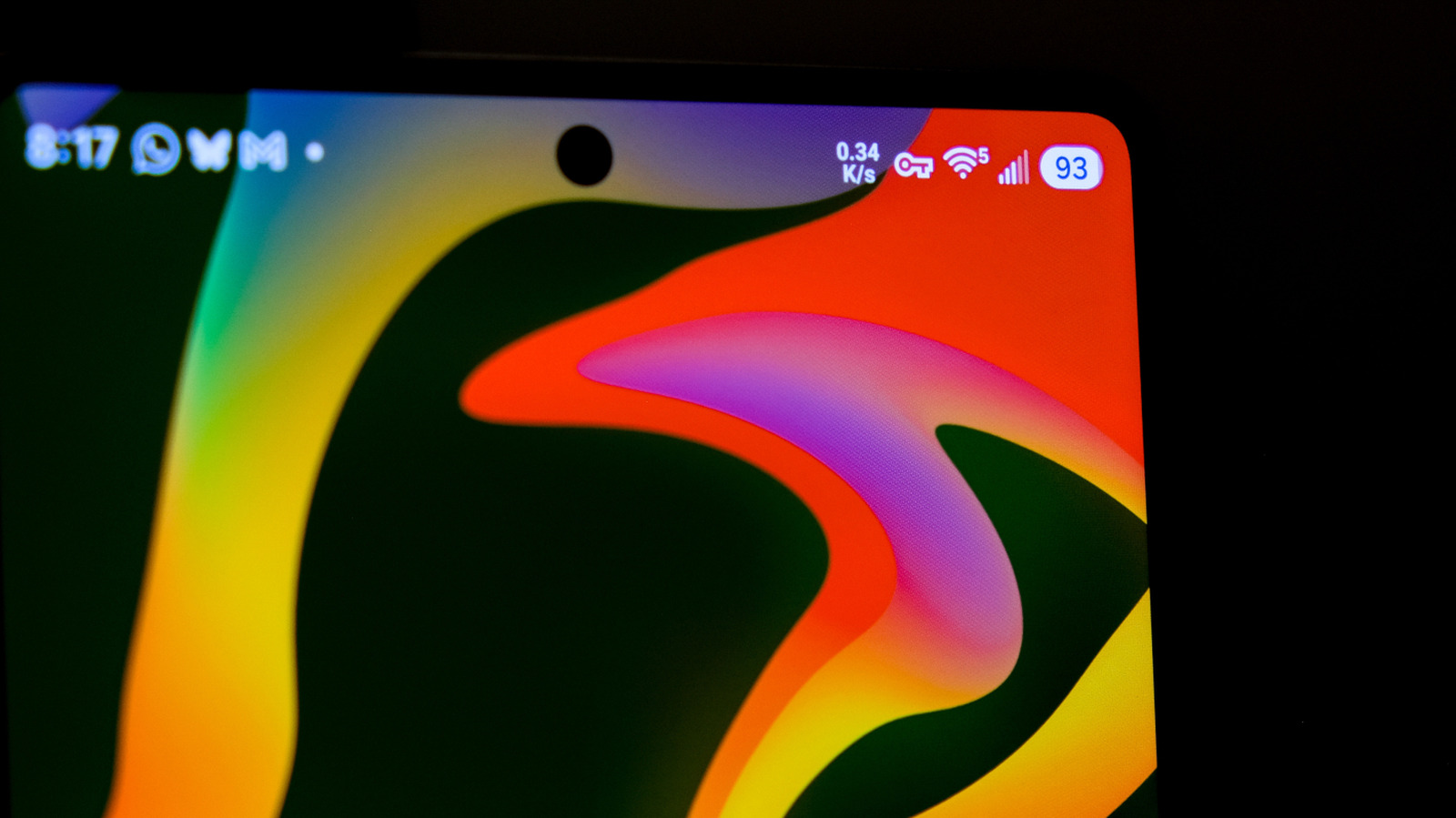
Decoding the Three Variants of the Samsung Galaxy Clock Icon
Users observing redundant clock indicators on Galaxy status bars can find actionable explanations for the active alarm, pending update, and battery-saving performance profile symbols.

Modern Android status bars are often cluttered with informational icons. On Samsung Galaxy devices, the clock symbol is frequently misinterpreted, appearing in three distinct formats to convey different states. Understanding these variations is essential for maintaining a clear interface.
The first and most common variant functions as an alert indicator for alarms configured within the Samsung Clock application. This icon alerts the user to an imminent alarm. Based on the configuration settings, the visibility of this indicator occurs when the alarm triggers at specific intervals. Observations noted in the source material indicate visibility markers at 30, 15, and 5 minutes before the scheduled time. The icon remains in the status bar adjacent to the Wi-Fi signal, persisting until the application state changes. The indicator is resolved by navigating to the Clock application and disabling or deleting the specific alarm entry via the Alarms tab.
The second variant is a rounded square shape containing a smaller clock symbol. This visual character signifies a pending software update. This indicator suggests that the device is awaiting the installation of a new software version, such as the current roll-out of One UI 9. The symbol remains static in the status bar until the update process is completed. Unlike the alarm indicator, this symbol does not disappear after dismissing a prompt. It requires the user to initiate an update check through the Settings menu at the Software update section to clear the status.
The third variant lacks the shape of a traditional clock, resembling a speedometer. This indicator denotes the activation of the Light performance profile. This feature is exclusive to newer flagship hardware, including the Galaxy Z Flip 4, Z Fold 4, and Galaxy S23 series devices. The purpose of the mode is to optimize battery life by lowering the processor speed for tasks like media consumption. The mode automatically deactivates during resource-intensive activities, such as gaming. The indicator in the status bar represents this reduced performance mode. It can be manually toggled off by tapping the associated tile within the Quick Settings panel.
Sources and further reading
See an error? Read our corrections policy or email [email protected].