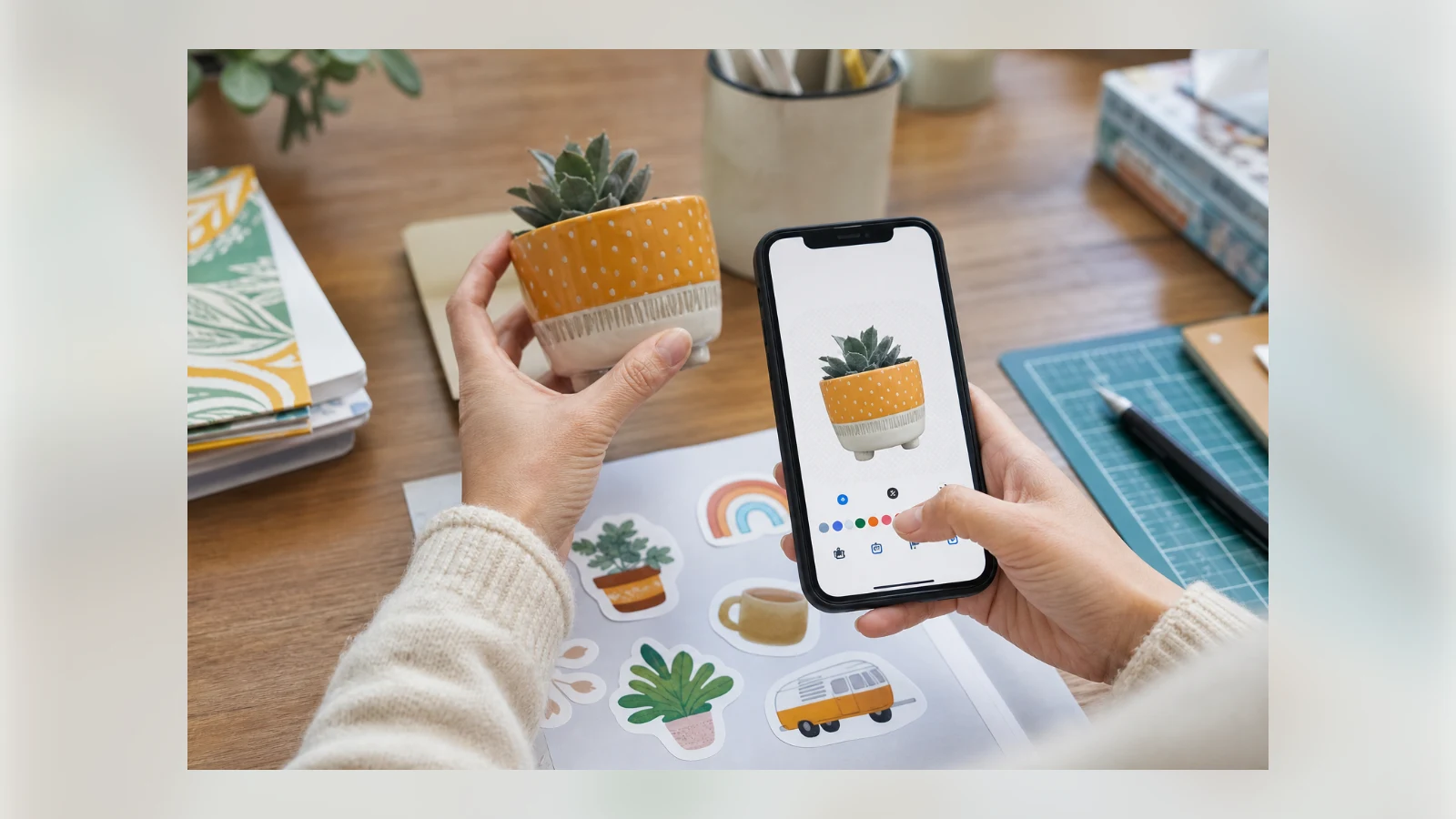
Stickers offer a fun and personal way to express yourself in iPhone messaging, beyond the limits of emoji and GIFs. You can turn any photo into a custom sticker—even animated ones from Live Photos—with just a few taps, no editing skills required.
Creating Stickers
There are two main ways to create a sticker. In the Photos app, open an image with a clear subject, like a person or object. Press and hold on that subject until it lights up, then tap 'Add Sticker' from the menu. For Live Photos, you'll get an animated sticker unless you turn off the Live option.
Alternatively, start from the Messages app. In a conversation, tap the '+' icon next to the text field, choose 'Stickers', then hit the '+' in your sticker list. Your photos will appear with the subjects you can use already highlighted. Tap one and then the '+' to add it.
Using and Managing Stickers in Messages
To send a sticker, simply tap it from your sticker library. For a more playful option, press and hold a sticker to 'peel' it, then drag it onto a message bubble or image to 'stick' it there. This works best in iMessage (blue bubble) conversations. In RCS chats with Android users, stickers should send but may lose the peel-and-stick behavior. In SMS, size limits can make them look blurry.
Manage your stickers by pressing and holding one in the sticker menu. Choose 'Rearrange' to enter a jiggle mode where you can drag them to reorder or tap the minus to delete. Select 'Add Effect' to apply options like Outline or Shiny, some of which respond to your phone's movement.
Stickers Beyond Messages
Your stickers sync across Apple devices via your Apple ID, so they're available on iPad and Mac. They also work in any app that supports Markup, like Mail, Notes, or Photos. In Photos, open an image, tap Edit, then the Markup icon. From the bottom toolbar, choose '+' and then 'Add Sticker' to place, resize, or duplicate stickers on the image.
Other messaging apps, like WhatsApp, let you use stickers by tapping the emoji button on your keyboard and selecting the Stickers tab—though they can't be 'stuck' onto messages as in iMessage.
Sticker Packs and More
If you want more variety, the Stickers menu includes emoji, Genmoji, Memoji, and sticker packs from compatible installed apps. Tap 'Edit' to rearrange these packs, or 'Get Sticker Apps' to browse the App Store for more. Engadget's original guide notes that apps like American Airlines, Wikipedia, and Taco Bell offer their own stickers.
There's no wrong way to use stickers, so create a bunch and have fun making conversations more personal.
See an error? Read our corrections policy or email [email protected].