How to tailor the iPhone Camera Control button to your shooting style
Apple's capacitive Camera Control button on recent iPhones can be remapped for launch apps, adjustments and gestures. Engadget walks through the settings that matter most for one-handed shooting.

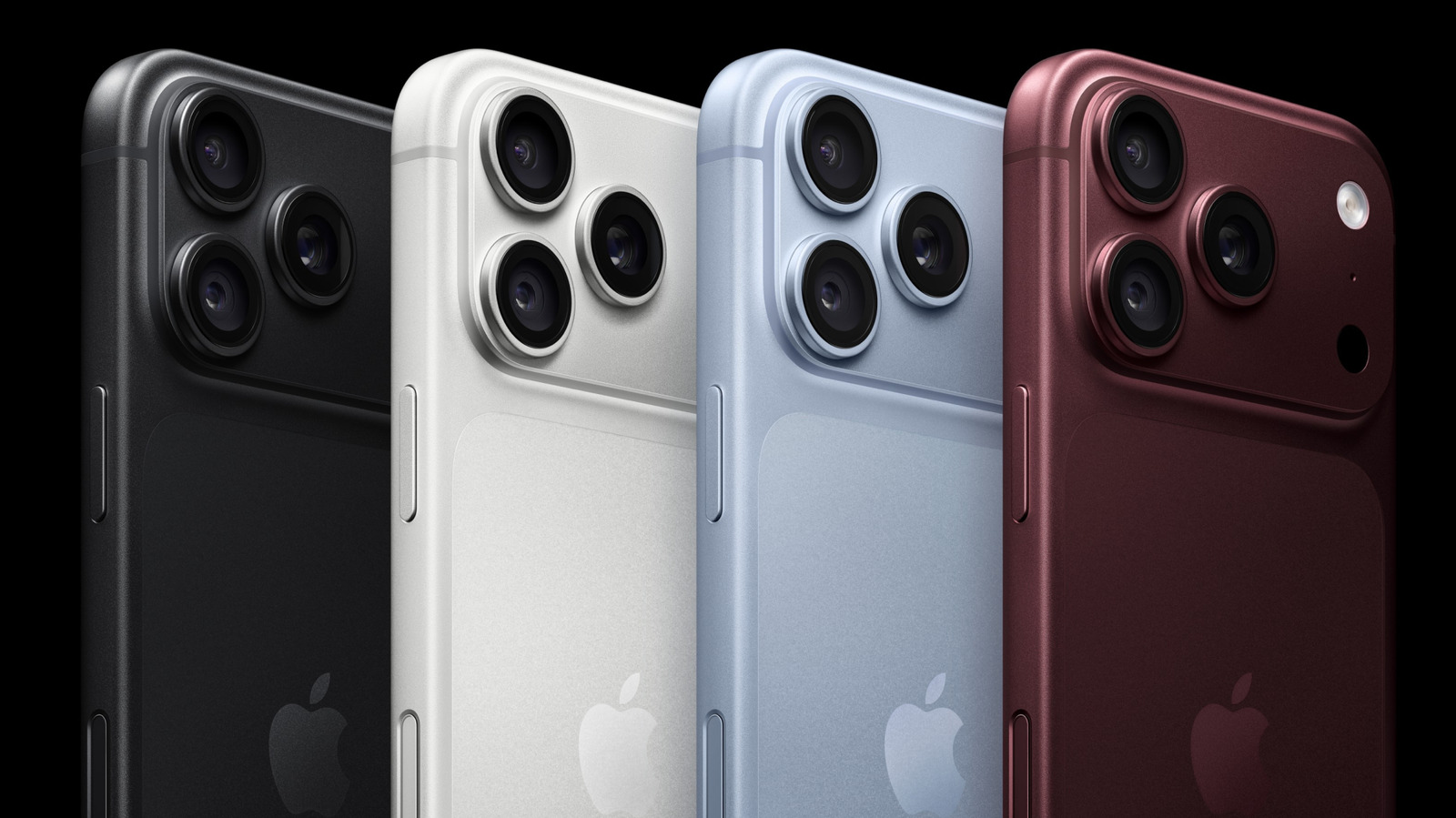
Apple's Camera Control, the capacitive button positioned low on the right edge of the iPhone 16, 17 and 18 series, is more configurable than its out-of-the-box behavior suggests. Engadget has published a walkthrough of the available settings, aimed at photographers who want the button to match their habits rather than the other way around.
The button itself is a gesture-sensitive surface, not a simple shutter release. According to Engadget, it recognizes single and double clicks along with swipe and light-press inputs, and it can open the camera, capture photos and video, and reach deeper shooting controls. That combination is what makes it useful for one-handed operation, the outlet notes.
Most of the customization lives under Settings > Camera > Camera Control. Engadget highlights two sections worth visiting first.
The first is Launch Camera. Tapping "Camera" here lets you pick which supported app opens when the button is pressed. The default is Apple's own Camera app, but the list can include Instagram — which Engadget frames as a fast route to posting a story — as well as Code Scanner for QR codes and Magnifier for close-up viewing. Other third-party apps may appear too, though Engadget notes some can be greyed out until they add full support.
The second is Controls, which governs what happens once the camera is already running. Enabling Camera Adjustments turns light presses and swipes into a way to move through shooting options. Within Customize, you choose which gestures are active and which of six possible adjustments the button can reach. Engadget does not list all six in its summary but describes the interface: tap an item to toggle it on or off, or press and hold the three-line handle beside an entry to drag it into a preferred order. Once set, swiping the button cycles through those adjustments in the sequence you defined.
Engadget also points to Settings > Accessibility > Camera Control for a separate set of options. There you can switch the button off entirely, or change how much force and speed a press requires, choosing between Default, Slow and Slower.
The outlet's own experience is worth noting as one journalist's preference rather than a universal recommendation. Engadget's writer set the response speed to Slow to reduce accidental camera launches while handling the phone, and narrowed the adjustment list to Zoom, Exposure and Styles to keep attention on the frame instead of rarely used controls. That is a reasonable illustration of the feature's purpose, but it reflects personal workflow rather than a tested configuration for all users.
What the walkthrough does not offer is benchmark or battery testing, comparisons against other phones, or any indication that these settings change image quality. The changes described are about access and ergonomics — which app opens, which gestures register, how firmly the button must be pressed — not about the camera's underlying hardware or processing. Readers hoping for guidance on upgrading from an older iPhone will not find it here; the piece only covers devices that already have the button.
The practical takeaway from Engadget's guide is that Camera Control is a modular input rather than a fixed one. Users who find it intrusive can disable it or make it harder to trigger, while those who shoot one-handed can remap it around a short list of the adjustments they actually touch. Both paths are available in the same settings pane.
Sources and further reading
See an error? Read our corrections policy or email [email protected].