Stabilizing the Smart TV Signal: Diagnosing Wi-Fi Drops and Band Steering Issues
Dropped connections on smart televisions are often not a flaw in the screen itself, but a negotiation gone wrong between the TV and the router. This report analyzes the impact of band steering and channel interference on 4K streaming performance.

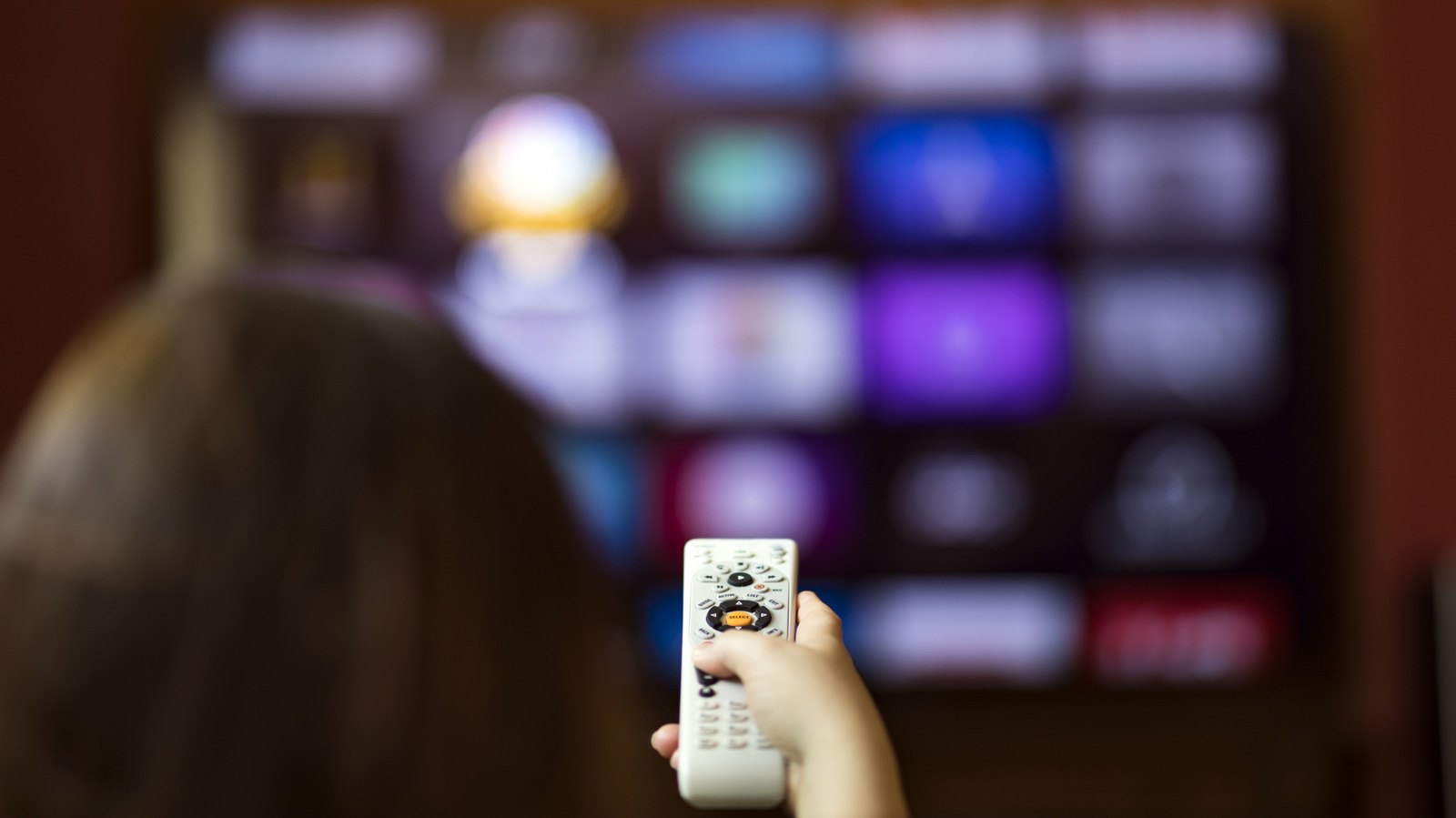
Interruptions in the Wi-Fi signal of a smart television are frequently environmental rather than a defect in the display hardware. Advanced Wi-Fi standards like 6E and 7 run faster, yet older protocols remain dominant. While 5GHz bands are the industry standard for 4K streaming due to speed requirements, their shorter range and susceptibility to interference make them finicky. The most common technical issue contributing to these drops involves the router's "band steering" feature.
Band steering groups 2.4GHz and 5GHz networks under a single name. It attempts to automate the switching of devices between bands to ensure the fastest connection. However, this automated negotiation can destabilize a television connection. The router might switch the TV to a less optimal band or move it onto a DFS (Dynamic Frequency Selection) channel. Older smart TV models, in particular, lack the software compatibility to access DFS channels, causing them to lose the network entirely.
Troubleshooting begins with isolating variables. Users should connect a laptop or smartphone to the same Wi-Fi network. If the secondary device maintains a strong signal, the issue is isolated to the television. At this stage, a firmware update may resolve software bugs. If the internet fails to reach the television, the problem lies within the gateway or service provider.
For manual configuration, the most effective step is often to disable band steering. This requires assigning unique names to each band. Users then select the appropriate band name or fixed channel number—such as 36, 40, 44, or 48—through the TV's settings. For those using a 5GHz connection that persists in dropping, switching to a fixed channel outside the DFS range can prevent discovery issues. Conversely, forcing a 2.4GHz connection may be necessary if the TV sits too far from the router for 5GHz to maintain stability.
However, 2.4GHz networks introduce congestion. They handle walls better but are slower and more susceptible to interference from microwaves and Bluetooth devices, which can disrupt voice commands on the remote. Network congestion is a significant factor in modern homes. Streaming 4K video requires a throughput of 20 Mbps or higher; attempts at this load on a crowded 2.4GHz band will result in buffering.
If configuration changes do not yield results, the router must be restarted. A sequence that involves unplugging the television for two minutes and the router for one minute can reset the handshake protocols. If the problem remains, the TV should clear its saved connections.
Ultimately, the most robust solution may be bypassing Wi-Fi entirely. An Ethernet cable is the gold standard for uninterrupted 4K streaming. If cabling is not feasible, a mesh network node placed near the television offers a bridge, routing a hardline connection closer to the display.
Sources and further reading
See an error? Read our corrections policy or email [email protected].