Why Windows 11 Uses So Much RAM (And When to Actually Worry)
Windows 11's high RAM usage is often by design, not a problem. Here's how to tell the difference and what to do if you're actually low on memory.

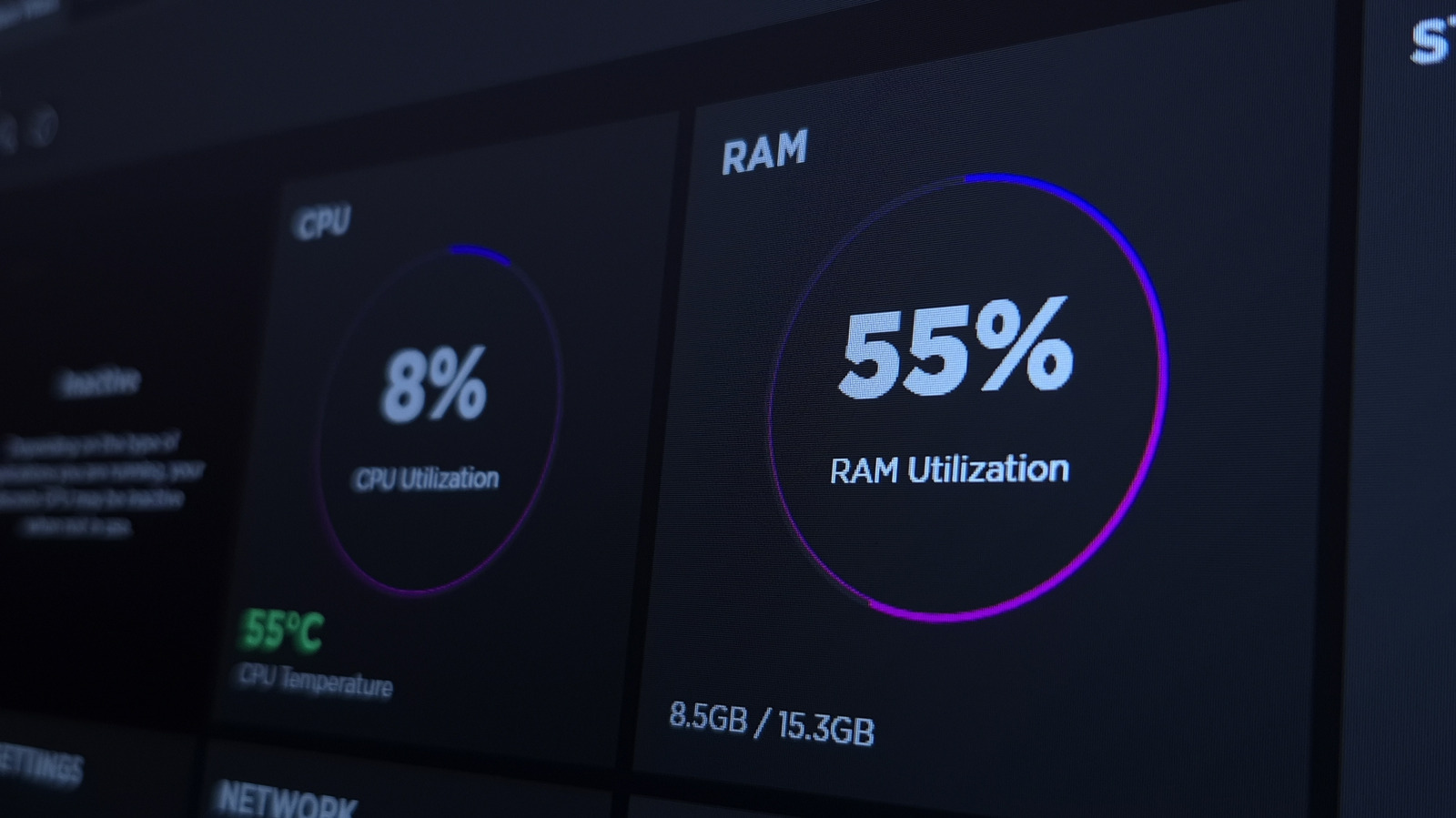
Open Task Manager on a Windows 11 PC and you might panic: even with few apps running, your system could be using over half of its available memory. According to Engadget, this is usually not a cause for concern. Modern Windows is designed to use RAM proactively, not conserve it.
RAM temporarily stores data your processor needs for running apps and opening files. It's much faster than your storage drive, so the more you have, the more you can keep open and switch between without slowdowns. But unused RAM doesn't help you—it's wasted. So Windows now preloads apps and files it thinks you'll need soon, based on your habits. This is handled by a process called SysMain (formerly SuperFetch in older Windows versions). If you open Chrome every morning, Windows may keep it in memory so it launches faster. That's why you might see high memory usage even when you're not doing much.
To check if your RAM is actually a problem, open Task Manager (Ctrl + Shift + Esc), go to the Performance tab, and select Memory. Ignore "In use" and look at "Available" instead. Cached data counts as available because Windows can reclaim it instantly. The more RAM you have, the more Windows can cache. So high usage in standby isn't a sign of trouble.
However, excessive RAM usage can sometimes indicate a real issue. If your PC is slow, apps crash, or you get "low on memory" alerts, something else might be wrong. In that case, check the Processes tab to see which apps use the most RAM and close unnecessary ones. Restarting your PC can also fix memory leaks—where a program doesn't release memory it no longer needs. Disabling startup apps you don't use can help too.
Third-party "memory cleaner" apps claim to reduce RAM usage, but they're generally not worth using. They may lower the percentage of memory in use, but they do so by forcing apps to switch to the page file (a part of your storage drive used as backup RAM), which makes them slower. The system will eventually reload everything anyway, so it's not a long-term fix.
Some people disable SysMain entirely to revert to old RAM management. Engadget advises against this in most cases, but on an older PC with a mechanical hard drive, constant preloading can keep the disk busy and make the system sluggish. If that's your situation, you can disable SysMain: press Win + R, type services.msc, find SysMain, open its Properties, click Stop, and set startup type to Disabled.
But again, this isn't recommended unless you're on an old system with an HDD that's starved for RAM. If you have 8GB of RAM or less, the proper solution is upgrading to 16GB or more—even though RAM is more expensive than ever. In the meantime, you can tweak a few settings to improve your experience on Windows 11.
Sources and further reading
See an error? Read our corrections policy or email [email protected].