How to Customize App Icons and Themes on Samsung Galaxy Phones
Samsung's Theme store and Good Lock suite give Galaxy owners ways to restyle icons, system colors and home screen layouts, with limits on using personal images as icons.

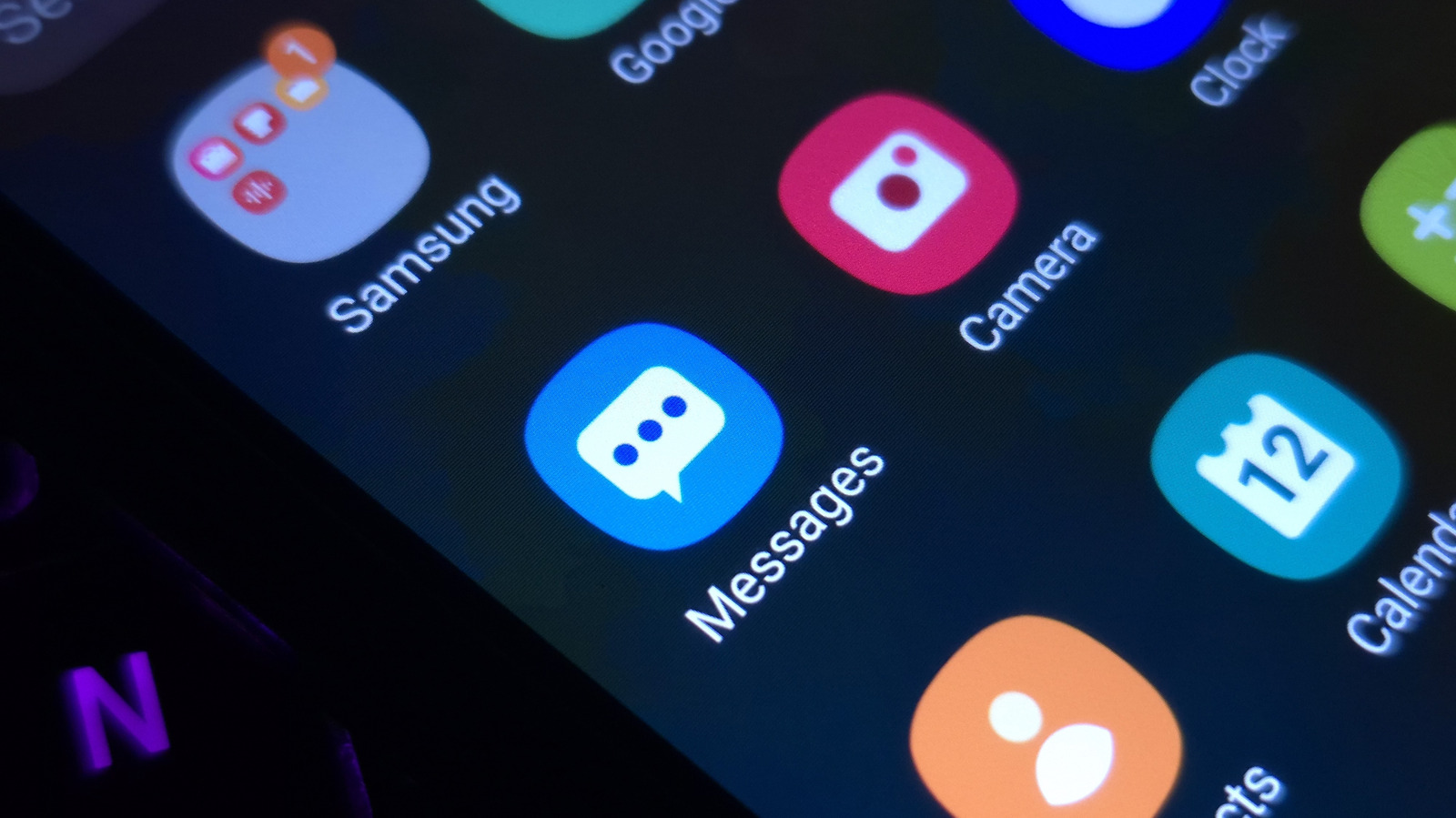
Samsung Galaxy owners who want their home screen to look different from everyone else's have a few built-in routes to get there, according to a guide published by Engadget. The coverage walks through Samsung's Themes store, the One UI 9 Quick Panel, the Good Lock customization suite and the system color palette tool.
The core method is Samsung's Themes app. From the Home screen, a user holds an empty area and taps Themes, browses available options, then opens the Menu and goes to My stuff to find downloaded Icons and Themes. Selecting an item and tapping Apply installs it. Engadget notes one firm limitation: users cannot supply their own images as app icons. Instead, the Icons section of the Themes app offers a catalog of downloadable icon sets.
Themes reach beyond the icons a user taps. According to the report, they also recolor system apps such as Contacts, Settings and Messages, and add color to the Quick Panel that appears when the screen is swiped down.
Owners who have moved to One UI 9 get a redesigned Quick Panel, accessible by swiping down from the top-right corner. Engadget describes resizing, repositioning and deleting elements to suit personal preference. The article also mentions that Samsung's Galaxy Wearable app for its Watch lineup can change watch faces by photographing an outfit, though that sits outside phone icon customization.
For deeper tweaking, Samsung offers the Good Lock suite, downloadable from the Play Store. Engadget's account says it supports motion wallpapers, lock screen designs and home screen changes, with add-ons such as Theme Park. Theme Park is described as able to recolor individual keys, notifications and Quick Panel switches — the piece cites changing the color used when Airplane Mode is toggled. A separate Home Up app is said to add stickers, flexible placement of apps and widgets, and custom gesture animations, along with control over speed and vibration. Good Lock also includes a one-handed mode that uses diagonal swipes for actions such as opening Recent Apps or returning to the Home screen, per the report.
A simpler option lives in Settings. Under Wallpaper and style, the Color palette toggle offers a set of Wallpaper colors and Basic colors, with on-screen previews showing how navigation will look. Tapping Apply spreads the chosen color across the interface, from menu switches to buttons in system apps. Engadget notes that the palette may not recolor every app icon, but it can adjust most of them without downloading a full theme — positioned as a lighter alternative to a custom theme.
Taken together, the material describes a layered system: a store for curated looks, Good Lock for granular control, and a system palette for quick recoloring. What it does not establish is how these tools perform over time, whether they affect battery life or performance, or how consistent results are across Galaxy models and regions. Nor does it offer criteria for deciding when an upgrade to a newer One UI version is worthwhile; the One UI 9 features are simply listed as available to users who have already updated. Readers weighing changes should treat the guide as a map of available options rather than an assessment of which are most useful day to day.
Engadget is the original source for these instructions and feature descriptions.
Sources and further reading
See an error? Read our corrections policy or email [email protected].