Roku's Star Button Is a Contextual Shortcut With Hidden Utility
Engadget explains how Roku's star button changes function across the home screen, app lists, playback, and accessibility controls.

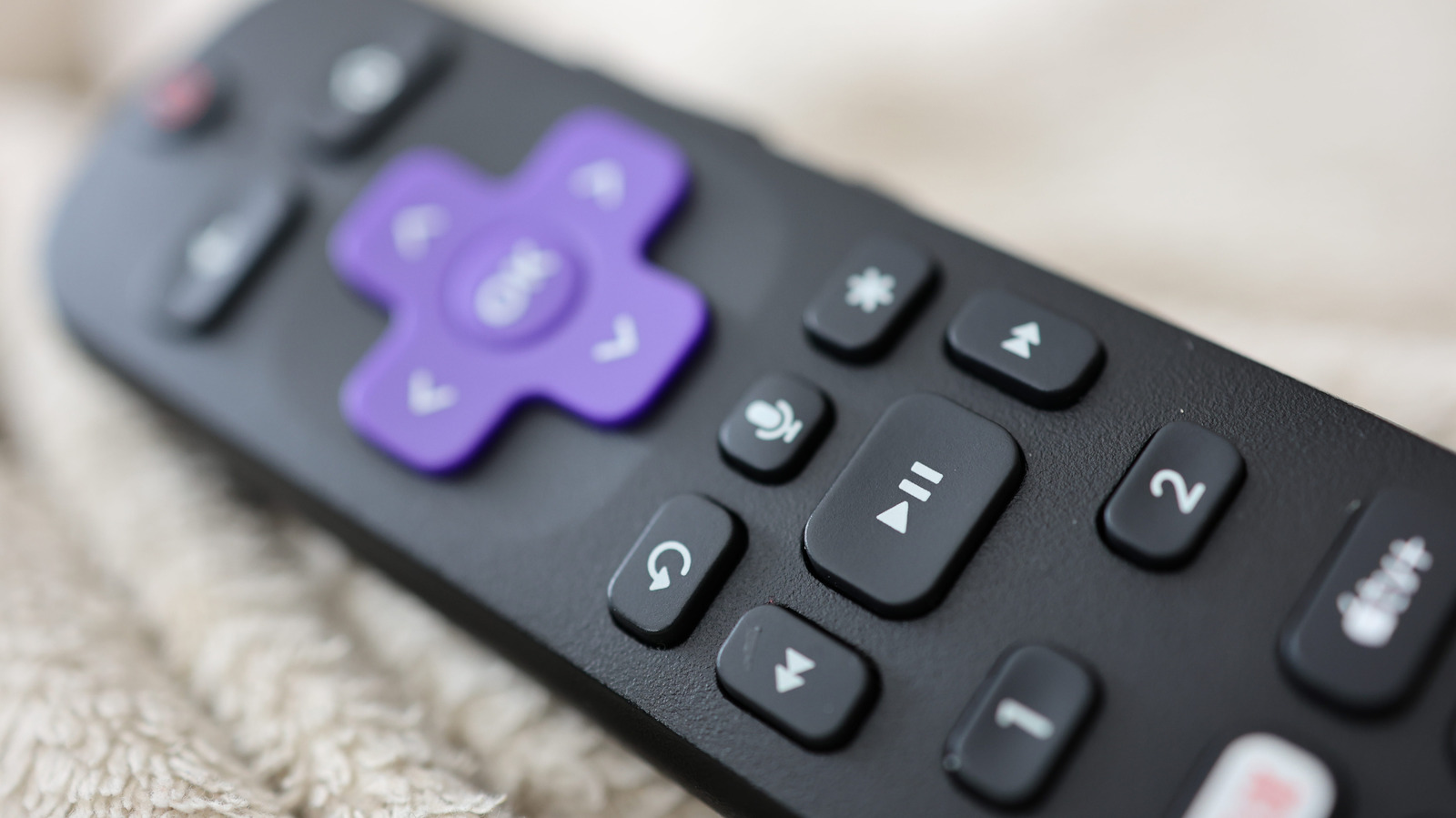
Roku's remote is generally designed so that each key's purpose is visible at a glance, but the star button above fast-forward is the exception. Because the label is only a star, the key is easy to overlook. Engadget's explainer describes it as a context-sensitive control that combines options-menu behavior with an accessibility shortcut. The result is not one fixed function but a set of functions that change according to the screen, the app, and whether the user has a Roku TV or a streaming box. Engadget notes that the same key appears on the physical remote and in the Roku mobile app.
On the home screen, the star button's behavior depends on where an app is highlighted. Engadget reports that in the Quick Access section, pressing star on an app only offers the option to remove it from that section. In the full app list, the button exposes more tools: the app's version and build number, the ability to move the channel's position, removal, app rating, feedback, and a check for updates. On a Roku TV, highlighting an external device such as a video game console gives the user the option to rename it.
During playback, the star button opens a sidebar of viewing controls. Engadget says these can include picture-quality adjustments, a sleep timer, closed captions, volume mode, and other settings. The exact menu varies by app and by device, and a Roku streaming box offers fewer options than a Roku TV, according to the report. The sidebar is therefore not a universal list of every option; it reflects what the current app and hardware can support. This is the area where the button most clearly acts as an in-context settings panel rather than a fixed command.
The star key also serves an accessibility role. Engadget says some Roku devices support a text-to-speech screen reader, formerly called Audio Guide, which assists with navigation. The feature is currently available only in the United States, the report says. The supplied source text says Roku lists supported devices but does not include that list, so this article does not name specific models. Users can turn the screen reader on through accessibility settings or toggle it by pressing the star button four times quickly. Finer controls, including speech rate and volume, are adjusted in the Accessibility section of Settings.
Engadget's explainer does not rank these functions or say which matter most in daily use. It also does not compare Roku's remote with competing designs, and it does not assess whether users should upgrade to another Roku model. On the evidence provided, the star button is best understood as a shortcut to controls that otherwise sit inside menus. Its practical value depends on the task: managing apps, renaming an input, changing playback settings, or quickly enabling narration. For current owners, the useful takeaway is to press it in each context to see what is available rather than assuming it has one job. Readers seeking a single answer to what the button does will not find one; the answer changes with context.
Sources and further reading
See an error? Read our corrections policy or email [email protected].