Why Your iPhone Photos Come Out Blurry — and the Settings That Actually Help
Most blurry iPhone shots trace back to a dirty lens or low light, not a broken camera. A practical rundown of the fixes Engadget recommends, and where third-party apps fit in.

Blurry iPhone photos are a common complaint, and according to Engadget's guide to the problem, the cause is usually more mundane than a failing camera. The publication walks through a series of fixes that range from a quick wipe of the lens to manual control via third-party apps.
Start with the lens
Before adjusting any settings, Engadget advises checking whether the lens itself is the problem. A smudged lens is a frequent culprit. The guide recommends removing the phone case, using a microfiber cloth rather than tissue or a shirt hem, and wiping gently. For stubborn marks, it suggests a very light dab of distilled water applied to the cloth — not directly to the lens — followed by another gentle wipe.
That step is presented as the starting point, not the whole answer. Engadget notes that plenty of iPhone footage and stills can still look blocky or soft even with a clean lens.
Light is the next suspect
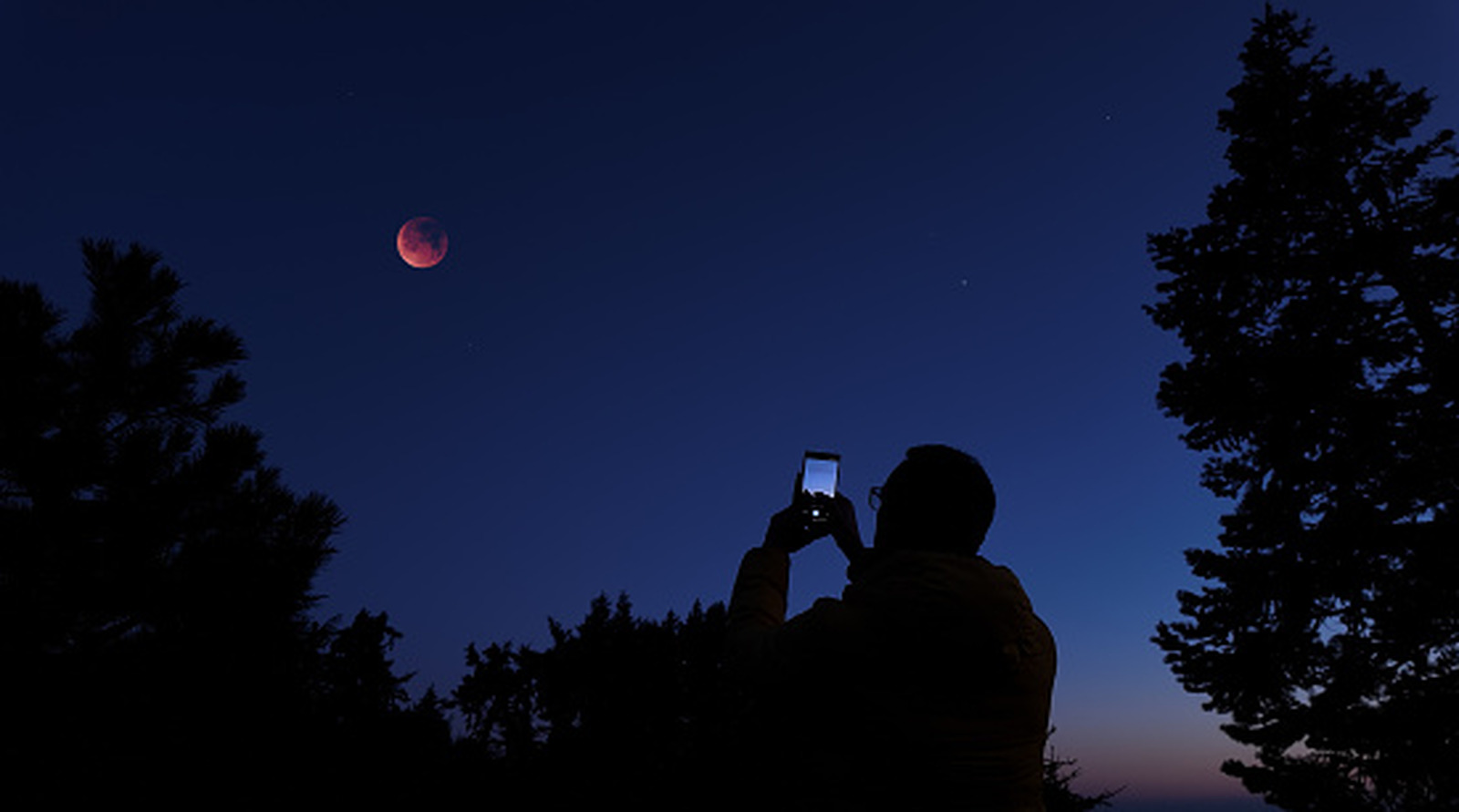
Low light is described as a prime cause of blurry shots. Engadget explains that dim conditions make it harder for a camera to focus reliably, often push the camera toward slower shutter speeds, and introduce more noise — all of which can leave photos and video looking blurry, grainy, or blocky after compression. The takeaway the guide draws is straightforward: improving smartphone photography means addressing low-light conditions.
Settings worth knowing
Engadget points to the iPhone's Camera settings menu (Settings > Camera), where resolution can be changed at the top. The guide states that anything above 720p will generally produce crisper image quality, while noting that different frame rates and resolution options are available there.
More useful controls sit inside the camera app itself. Engadget highlights focus lock: tapping and holding on the area you want in focus until the "AE/AF LOCK" prompt appears, which stops the camera from shifting focus around the frame. On iPhone 11 and newer, the guide also mentions Night Mode, indicated by a moon icon at the top of the camera interface. It notes the mode will activate automatically in low light and works by brightening and capturing low-light images with more detail.
Manual control and stabilization
For shutter speed and ISO adjustments, Engadget says a third-party app such as Camera+ is required. The guide frames this as a way to access granular camera controls, and suggests it can particularly help users on older devices. It also flags the trade-offs: slower shutter speeds can introduce motion blur, while higher ISO settings can increase visible noise and reduce image quality.
Beyond software, Engadget recommends a tripod for anyone serious about avoiding blur. A tripod holds the iPhone steady during longer exposures, which the guide says reduces camera shake that can otherwise turn small movements into visible blur — especially in low light.
What this means in practice
The advice points to a layered approach rather than a single fix. Lens hygiene and adequate lighting address the most common causes; focus lock and Night Mode are built-in tools that require no extra spending; third-party apps and a tripod are aimed at users who want finer control or who are working with older hardware. Engadget's framing suggests most everyday blur problems can be improved without specialized equipment, while the more advanced options are for those pushing their phone camera further.
Whether Night Mode, focus lock, or a tripod makes a noticeable difference will depend on the shooting conditions and the device. Engadget's guidance is practical rather than exhaustive, and the relative impact of each fix is not quantified in the source material.
Sources and further reading
See an error? Read our corrections policy or email [email protected].