What the Orange Dot on Your Galaxy Watch Actually Means
Samsung's Galaxy Watches use a small orange dot to flag unread notifications. Here's how to read it, and how to turn it off.

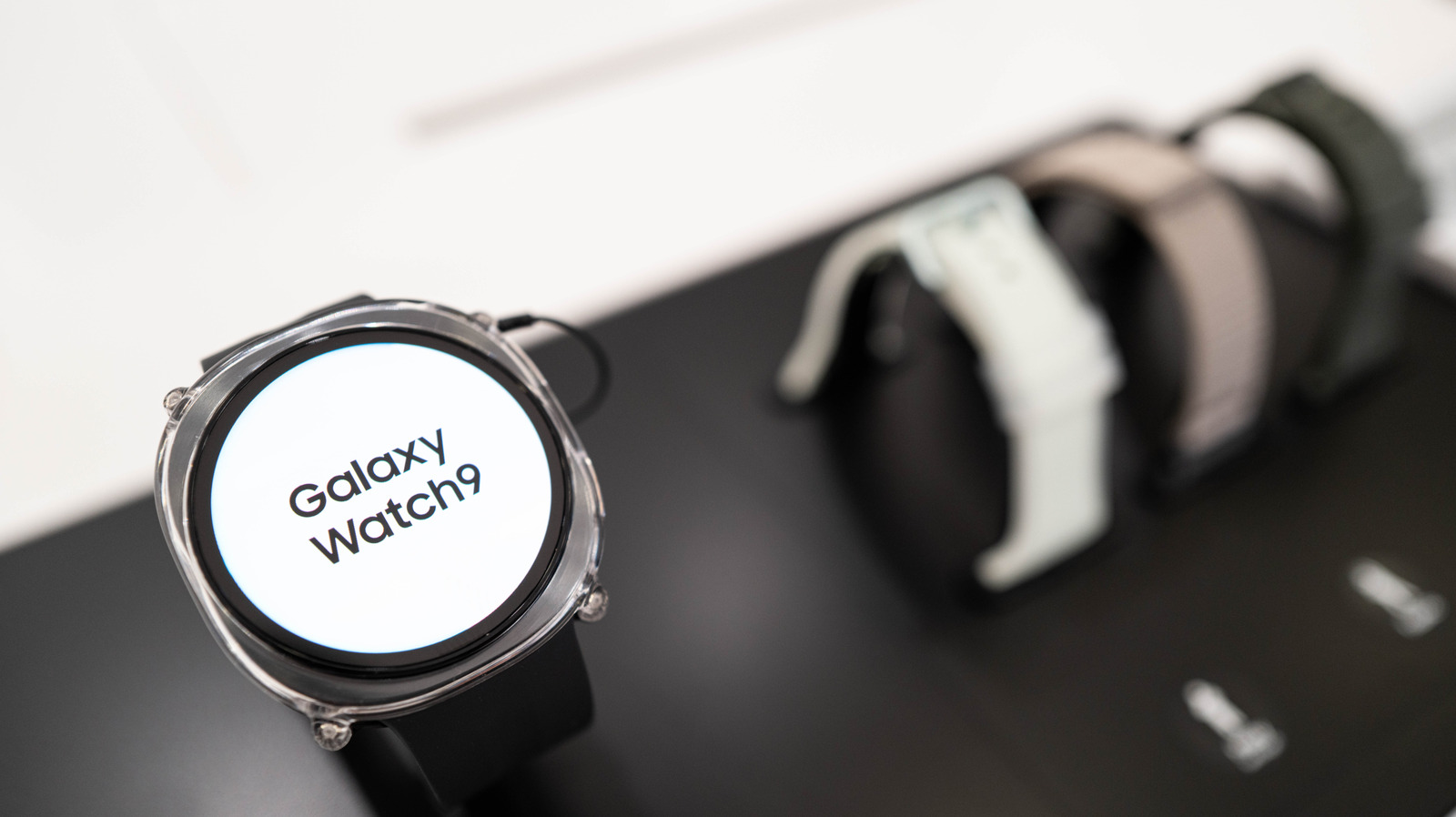
If you own a Samsung Galaxy Watch, you may have noticed a small orange dot on the left side of the screen. According to Engadget, that dot is a notification indicator for unread alerts. It stays visible until all pending notifications have been read.
The indicator can also appear red, which Engadget reports signals an urgent message. The orange dot is described as common and harmless.
For users who prefer a cleaner watch face, the indicator can be disabled. Engadget outlines two methods. On the watch itself, go to Settings > Notifications > Advanced Settings and turn off "New notification indicator on watch face." On a linked Samsung phone, open the Wearable app and navigate to Watch Settings > Notifications > Advanced notification settings, then toggle off the same option.
The orange dot is one of several small symbols Samsung uses to convey status information on the watch's compact display. Engadget notes that other icons can appear at the top and bottom of the screen:
- A phone icon with a slash through it indicates the watch has lost its Bluetooth connection to the phone.
- A rectangle containing a cloud means the watch is connected via mobile data or Wi-Fi rather than Bluetooth.
- A padlock shows the watch is locked and requires a password or PIN.
- A blue music note at the bottom indicates an app is playing music, and it can be tapped to control audio.
- A green phone icon in that same area appears when the watch or a connected phone is in use for a call.
These indicators are designed to save space on a small screen, a common consideration among smartwatches. The information is based on Engadget's reporting and does not include independent testing by this desk.
Readers who want to reduce visual clutter can use the settings described above. Those who rely on notification alerts may prefer to leave the indicator enabled, since it provides a quick visual cue that messages are waiting.
Sources and further reading
See an error? Read our corrections policy or email [email protected].