What the Red Dot on Your Apple Watch Actually Means, and How to Clear It
A small red dot at the top of the Apple Watch screen signals unread notifications. Here's how to view, clear, and silence them, based on Engadget's walkthrough.

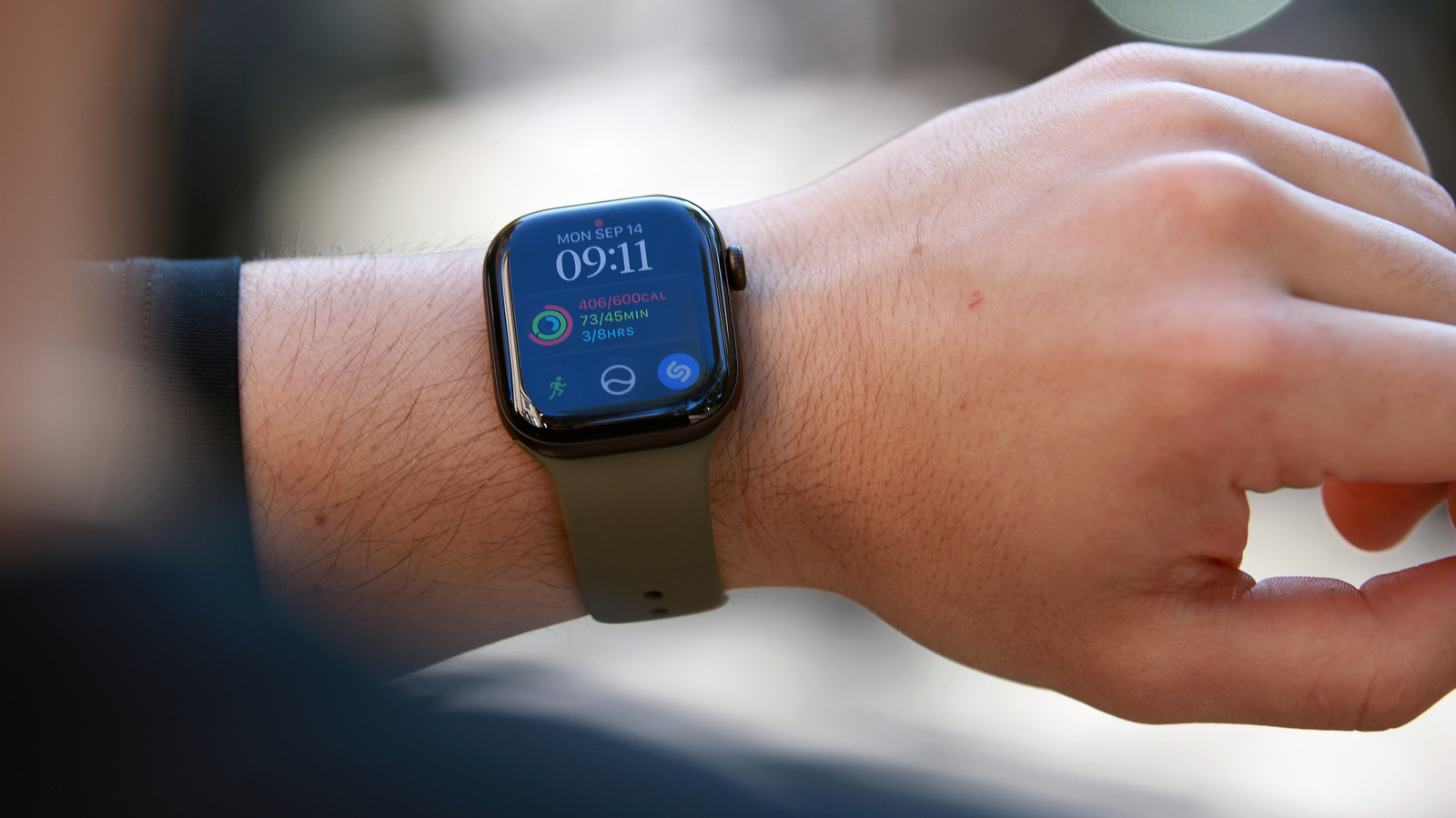
A red dot at the top of an Apple Watch display is easy to misread, but it carries a specific meaning: there are notifications you have not yet read or dismissed. Engadget's how-to guide explains the indicator and the steps for managing it.
Why notifications land on the watch
Apple routes alerts to the iPhone when that device is unlocked, according to Engadget. If the phone is locked and the watch is the unlocked device, the watch receives them instead. The red dot does not mean every alert was seen as it arrived. It appears when unread notifications remain, and it disappears once they are handled.
How to view and clear them
To open the Notification Center, press and hold the watch face. From there, users can scroll by swiping down on the screen or turning the Digital Crown. Tapping a notification opens it; swiping left and tapping the X dismisses it.
For a quick reset, Engadget describes scrolling to the top of the Notification Center until a Clear All button appears, then tapping it to remove all unread notifications at once.
How to hide the indicator
Users who find the dot distracting or intrusive can disable it. In the Apple Watch app on the paired iPhone, open Notifications and switch off Notifications Indicator. Engadget frames this as an option for people who dislike the visual cue or prefer not to be disturbed, though the underlying notifications themselves are not necessarily stopped by this step.
Fine-tuning alerts per app
Beyond the dot itself, the guide outlines controls for individual apps. Swiping left on a notification and tapping the ellipsis icon presents options to mute that app for an hour or turn its notifications off entirely. A separate choice, Turn off Time Sensitive, governs whether an app can deliver immediate alerts even when a Focus mode is active, which otherwise delays most notifications.
Many apps only mirror the iPhone, so their settings are the same on both devices. Engadget notes that under Notifications in the Watch app, the Mirror iPhone Alerts section lets users switch off mirroring for listed apps so alerts stop arriving on the watch. Some apps support custom alerts and show a Custom label when selected in the Watch app. On those individual settings pages, users can choose Notifications Off or Send to Notification Center; the latter delivers alerts to the watch's Notification Center without an active alert.
Interpretation
The guidance points to a broader design trade-off in wearables: the same notification pipeline that keeps a wrist useful can also produce persistent visual prompts. Apple addresses this with layered controls, from hiding the indicator to muting apps, mirroring rules, and Focus-aware timing. For most users, the practical questions are how much interruption they want on the wrist and which apps genuinely need immediate delivery.
Engadget's walkthrough is limited to notification behavior on existing Apple Watch software. It does not evaluate hardware generations or new models, so it offers no basis for advising anyone on upgrades. Readers weighing a purchase should treat this material as a guide to managing alerts, not as a product recommendation.
Sources and further reading
See an error? Read our corrections policy or email [email protected].