Why Your SD Card Rejects Files Over 4GB—and When exFAT Is Worth It
Engadget's guide explains FAT32's roughly 4GB per-file ceiling, the exFAT workaround, and the device-compatibility caveats that matter before reformatting.

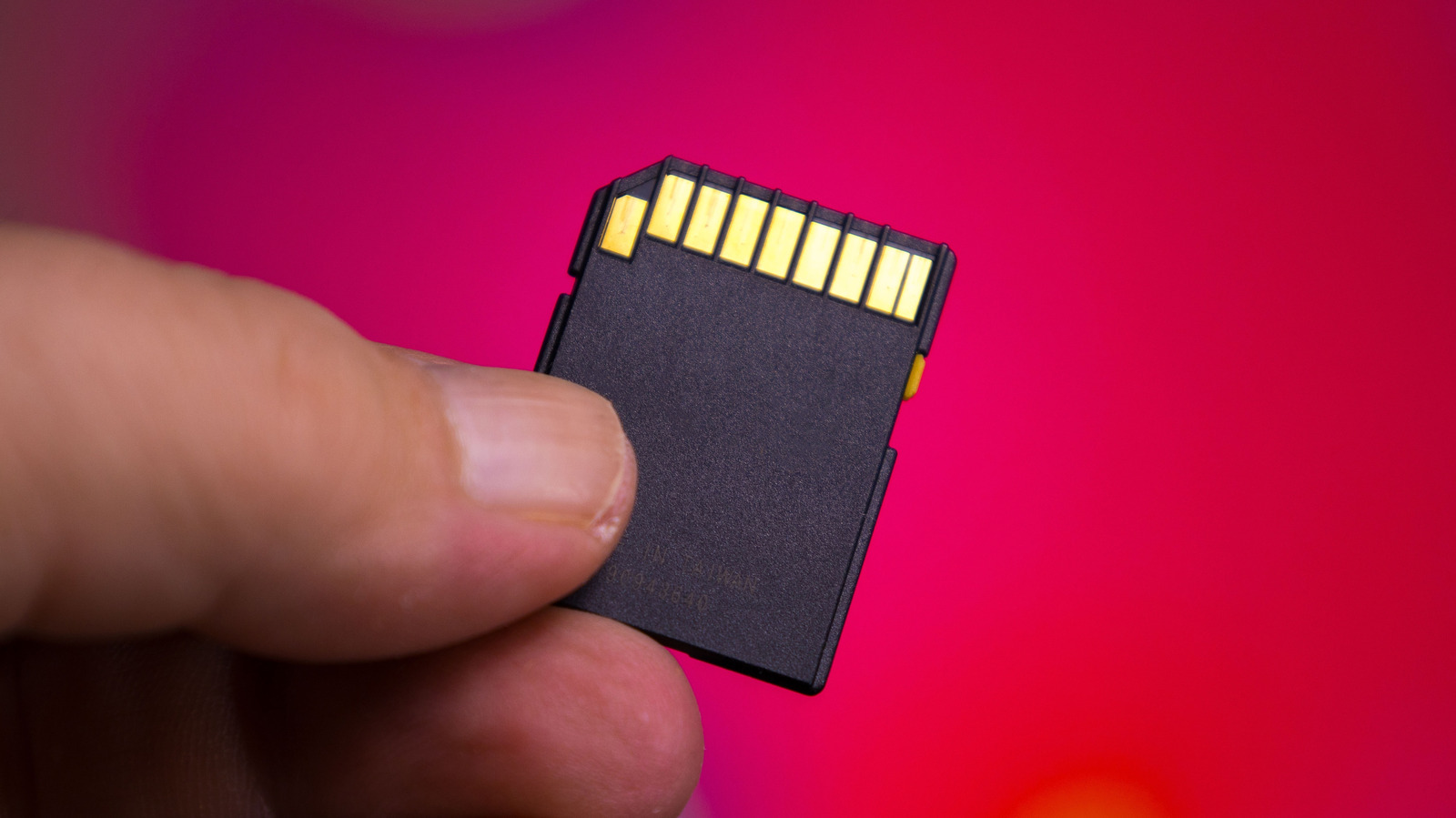
Engadget's explainer addresses a common SD-card frustration: a card with free space refuses a file because that single file exceeds roughly 4GB. The card is usually not broken. The limiting factor is FAT32, the file system often preinstalled on cards. FAT32 is broadly compatible, but it records file sizes with a 32-bit value, so the largest representable size is about 4.29 billion bytes, or just under 4GB. Engadget frames this as a file-system ceiling rather than a hardware limit: the card may have room, but FAT32 will not accept a single file beyond that threshold. The article also notes that modern cards can hold far more data than the old format was designed to address in a single file.
For ordinary documents and photos, this may never matter. The issue becomes visible with large assets such as 4K video files. Engadget's recommended fix is to reformat the card to exFAT, which supports files larger than 4GB. That is a practical change for people who routinely move big video files or other large single-file data. It is not necessary for every card user, and it should not be treated as a universal performance improvement; the source presents it as a compatibility change to overcome a size limit.
Compatibility is the main caution. Engadget says very old devices, such as a camera more than a decade old, may not read exFAT. The article notes Microsoft added exFAT support in Windows Vista SP1 and Apple added it in OS X Snow Leopard. Devices older than those platforms may be better left on FAT32. Users should check the host device before changing formats, because the card must be readable by the camera, drone, recorder, or other hardware it will be used in.
The procedure is straightforward but destructive. Engadget advises backing up the card first because formatting erases its contents. On Windows, the article describes using File Explorer: open This PC, right-click the SD card, choose Format, and select exFAT under File System. The dialog also allows a quick format and a volume rename. On macOS, Engadget points to Disk Utility, accessible via Spotlight; users should choose View > Show All Devices, select the card itself rather than the volume beneath it, click Erase, choose exFAT, name the volume, and confirm. The same general process applies to microSD cards and USB drives.
There is a one-way caveat in the source: Windows will not offer FAT32 for cards larger than 32GB, so reverting would require Terminal commands or third-party software. That makes the initial choice more important. In editorial terms, the meaningful benefit is clear for large-file workflows; for light users, the old format may be adequate. Anyone considering the switch should weigh file-size needs against device compatibility and the inconvenience of backing up and reformatting. Engadget's piece is a useful troubleshooting guide, not evidence that exFAT is universally superior.
Sources and further reading
See an error? Read our corrections policy or email [email protected].